Rendering & delivery
When the edit is right, rendering turns the timeline into a single video file.
Rendering
Open the render panel from the editor. You choose:
- Resolution — 720p, 1080p or 4K, depending on your plan.
- Format — the codec for the output file.
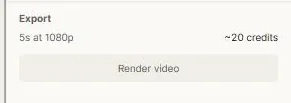
Clip shows the estimated cost before you start, based on the length of your composition and the resolution you picked — a five-second 1080p render is around twenty credits. Rendering is the only part of the video editor that costs anything; editing is free.
The maximum length of a single render depends on your plan, up to three minutes.
While it renders
Rendering happens on Clip's servers, not in your browser. That means you can close the tab, go back to the canvas, or work on something else — it keeps going.
The panel shows the current state: submitting, waiting for a slot, or rendering, with progress.
If your organization already has renders running, yours waits in line and shows its position. Each plan allows a number of concurrent renders.
Cancel stops a render that hasn't finished, and refunds the credits.
When it's done
You get a preview of the finished video, and two things to do with it:
- Download the file.
- Add to canvas — the render lands on your project canvas as a video object, alongside everything else. From there it exports, drops into a chat message, or feeds another edit.
That round trip is the point of having the editor inside Clip: generate the clips on the canvas, cut them in the editor, and put the finished film back on the canvas where the rest of the campaign lives.
Version history
The editor keeps its own history, covering roughly the last four hours of active editing, with entries marked by why they were saved — an automatic save, or the state immediately before a restore.
Preview loads an earlier version so you can look at it safely. Restore brings it back, and takes a backup of the current state first, so restoring is itself undoable.
If you restore in another tab, this one reloads rather than quietly overwriting what you just brought back.
Managing your edits
The Video edits tab in your project lists every edit:
- Rename them.
- Duplicate one to try a different cut without losing the first.
- Delete one — the clips it used stay in your project.
- See at a glance which renders are already on the canvas.
Next: Exporting.