Organizing your canvas
A canvas that's been worked on for an afternoon holds a lot. These are the tools for finding things again.
All of them are free.
The layers panel
Open Layers from the top bar. Everything on the canvas is listed in stacking order, top of the list being top of the pile.
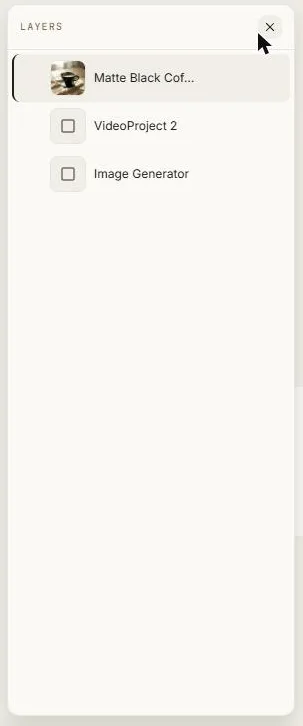
From the panel you can:
- Drag to reorder — move something several positions in one drag.
- Rename — click a name and type.
- Hide and show — take something out of view without deleting it.
- Lock and unlock — protect finished work from accidental nudges.
- Jump to it — click an entry and the canvas pans to that object.
Naming things
Clip names generated work automatically from what you asked for, so an image of a coffee dripper arrives called something like "Matte Black Coffee Dripper" rather than "Image 7". You can rename anything, and your name is what shows up in the layers panel and in search.
Finding things
The Assets panel searches everything in the project. It looks at names and at text content, so you can find a text block by what it says.
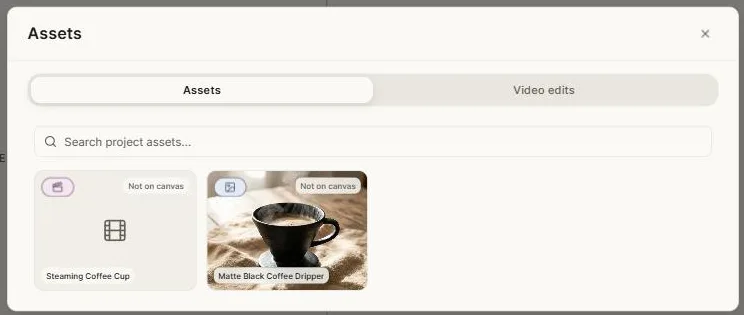
Assets is backed by the project itself rather than by what's currently on the canvas, which has a useful consequence: something you generated and later deleted is still listed — marked Not on canvas — and one click puts it back. Each entry tells you whether it's currently placed, and Locate takes you to it.
The second tab lists this project's video edits.
Marks
Marks are numbered pins for pointing at part of an image. They're covered in Canvas tools, and they matter most when talking to the AI — see Design chat.
Locking
Lock anything you've finished with. Locked objects can't be moved, resized or deleted until you unlock them, which makes them ideal for backgrounds and approved artwork.
The right-click menu
Right-click anything for the full set of actions in one place: cut, copy, paste, duplicate, delete, group, ungroup, arrange, lock, flatten to image, and — for anything the AI made — Details.
Details: how a result was made
Right-click an AI-generated object and choose Details to see exactly what produced it: the prompt, the model, the aspect ratio and size, any reference images, and the specific settings used.
It's the fastest way to recreate a result you liked, or to tweak one variable and try again. It's also the one place Clip names the underlying model.
Assets made before this was introduced show a short note instead of the full record.
Flatten to image
Merges any selection into a single picture. Useful when a composition is final and you want to treat it as one object — or when you want to hand a whole arrangement to an AI tool that works on a single image.
Duplicating and deleting
Ctrl D duplicates. Delete removes. Both are undoable, and the canvas keeps version history besides.
Next: Creating images.