Design chat
The chat panel is a design assistant that works on your canvas. Describe an outcome and it plans the job, runs the generations, and arranges the results where you can see them.
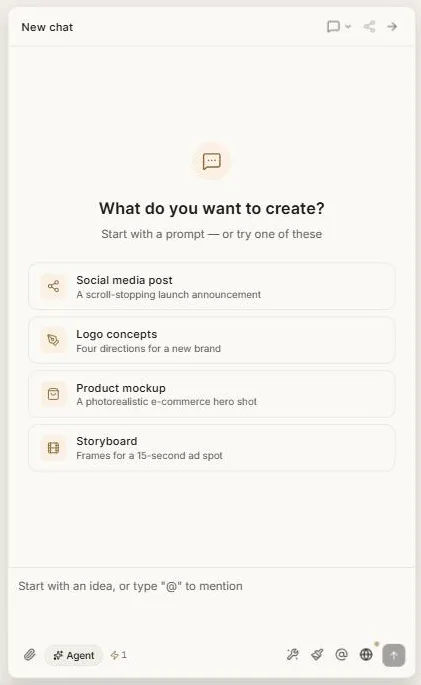
Toggle it with C, or from the top of the tool rail. Drag its edge to resize it.
Asking for something
Say what you want in plain language. The starter prompts on an empty chat give you the shape of a good request:
A scroll-stopping launch announcement Four logo directions for a new brand A photorealistic e-commerce hero shot Frames for a 15-second ad spot
You can ask for one thing or a whole set. Asking for eight variations is one instruction, not eight.
How much thinking to use
The Agent control sets how much effort goes into a turn. Leave it on the middle setting and Clip decides per request — a quick question gets a quick answer, a real design job gets planned properly.
Watching it work
While a turn runs you get a live checklist: what the agent is doing, step by step, ticking off as it goes. Research, planning, each generation dispatched, each one landing.
Stop halts everything. Anything still queued is cancelled and refunded; anything already running finishes.
Pointing at your canvas
The agent can only act on what it knows about. Three ways to tell it:
Mentions. Type @ to reference anything on your canvas — an image, a video, a document — and pick it from the list. It appears as a chip with a thumbnail, so there's no ambiguity about which one you meant. Selecting something on the canvas adds it as a mention automatically.
Marks. Numbered pins dropped on an image travel with your message. "Make ① warmer and remove ②" is precise in a way words alone aren't.
Right-click → send to chat. Hand any part of your canvas to the agent directly, including a rough sketch you've drawn. "Turn this scribble into a proper icon" works.
Attachments
The paperclip attaches:
- Images — references for the agent to work from.
- Documents — a PDF or text file it should read. A brief, a product sheet, existing positioning. Available on Premium and above.
What it costs
Each reply costs ⚡2, shown on the composer before you send. Once you've had more than 30 replies in an hour, each further reply costs ⚡3. Anything the agent then makes — an image, a video — costs what that generation costs, on top.
Approving spend before it happens
For larger jobs the agent stops and shows you what it proposes to make and exactly what it will cost, and waits. Nothing is charged until you approve.
You can also trim the job before approving — ask for eight variations, approve four. The card then locks to a summary of what you agreed.
Results
Every generation appears as a card in the conversation and as a real object on the canvas. Click a card to fly the canvas to that object. Drag a result out of the chat and drop it where you want it — it lands as a proper image or video, not a link.
When a turn produces several things, the canvas zooms out to frame the whole set so you can see everything you just got.
Conversations
Chats are saved per project. Chat history lists them; you can rename and reopen any of them. Copy chat link shares a conversation.
Starting a new chat gives you a clean slate. A style preset applies to the conversation it was chosen in.
When to ask and when to do it yourself
Ask for breadth — several directions, a full set, a first pass at something you can't picture yet.
Do it by hand for precision — one specific change to one specific image, where a generator node and the image tools give you exact control.
Most work mixes both.
Next: Brand kits.