Stock photos & uploads
Not everything should be generated. Real product photographs, your own logo, a client's supplied assets, a stock shot that's already right — all of it belongs on the canvas alongside generated work, and all of it takes the same AI tools.
Bringing in your own files
Four ways, all free:
- The Upload tool on the tool rail — images and video.
- Drag and drop from your desktop straight onto the canvas.
- Paste from the clipboard.
- Paste a link — any image or video web address.
Uploads are ordinary canvas objects. Select an uploaded photograph and you get the full AI toolbar: cut it out, retouch it, expand it, upscale it, split it into layers.
That's often the fastest route to a finished piece — start from a real photograph of the actual product rather than trying to describe it into existence.
Starting a project with files
You can drop files onto the home page prompt bar and start a project with them already in place, rather than creating the project and then adding them.
Multiple images at once
Select several files in one go and they all come in together.
Pasted links
When you paste an image or video address, Clip fetches the file and brings it properly into your project rather than leaving your canvas pointing at someone else's server. That matters — an external link can break, and the AI can't reliably work from a URL it can't reach.
Very large files may not come across; when that happens Clip tells you rather than failing silently.
Stock photos
Open Stock photos from the top bar to search millions of free Unsplash images without leaving Clip. Search, click, and the photograph lands on your canvas ready to use.
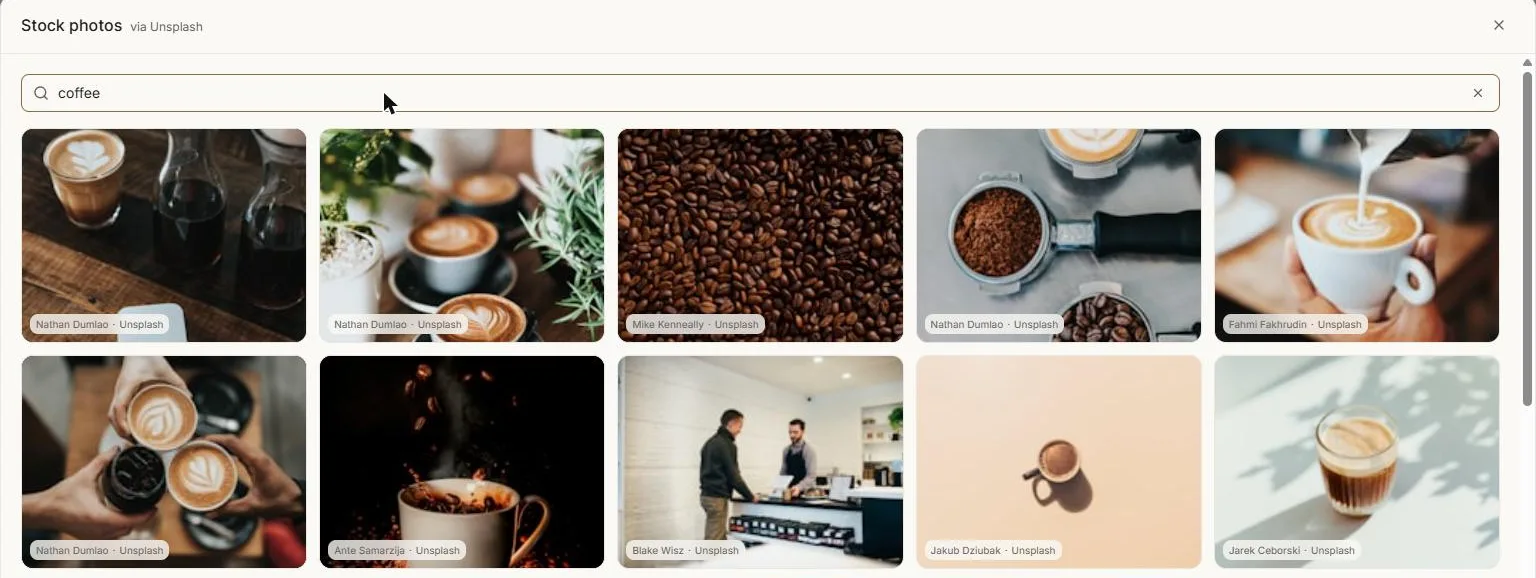
Every result carries its photographer's credit.
Stock is useful for backgrounds, textures, environments and reference — the things that don't need to be your own, and where a real photograph beats a generated approximation.
Project assets
The Assets panel is your project's library: everything generated or brought in, in one searchable list.
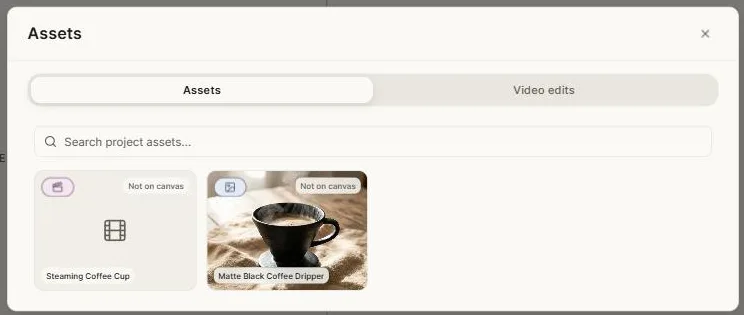
It's backed by the project rather than by the canvas, which has a genuinely useful consequence — something you generated and later deleted is still listed, and you can put it back on the canvas. Each entry shows whether it's currently placed, and Locate takes you to it.
Using an asset as an input
Anywhere Clip asks for an image — a video start frame, a 3D input, a generator reference — you can Pick from canvas and click the one you want, rather than re-uploading it.
A note on what you upload
Files you bring in are yours and stay in your project. Reference images attached to a chat are read for that conversation and are not added to your project's shared assets, so a private reference doesn't travel with a duplicated or shared project.
Next: The video editor.