Reshaping images
Tools that change a picture's shape, its viewpoint, or what it's made of.
Expand — ⚡8
Stretches a picture into a wider or taller shape and invents the new space to match.
The classic use is one image in several places: a square product shot that also has to work as a wide banner and a tall story. Rather than cropping into it and losing the subject, expand outward and let Clip paint what was never photographed.
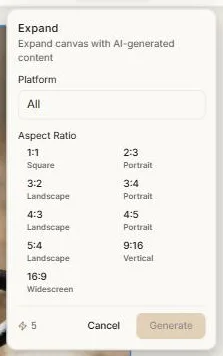
You pick the shape you want rather than nudging edges: choose a target aspect ratio — nine of them, from square through portrait, landscape, vertical and widescreen — and Clip fills the new area consistently with what's already there. The platform filter narrows the list to the ratios a given channel actually uses.
Multi-angle — ⚡7
Shows the same subject from other camera angles.
Genuinely useful for products: generate one hero shot you love, then get the three-quarter and side views for a listing or a carousel without re-shooting or re-prompting. Each angle arrives as its own image on the canvas.
Move object — ⚡14+
Pick something up inside a picture and put it somewhere else.
Like Edit Now, the price follows the size of the picture: ⚡14 below 2K, ⚡20 from 2K, ⚡30 at 4K.
Draw a box around the object, then drag and resize a copy of that box to where it should go. Clip moves the object, fills in where it was, and blends it into its new position.
Good for composition fixes — a product too close to the edge, an element that would sit better on the other side.
Edit text — ⚡1
Finds the words inside a picture and lets you rewrite them.
Run it and Clip highlights every piece of text it can see. Click one, and you get its current wording; type the replacement and apply. Clip matches the typeface, colour and perspective as closely as it can.
The cheapest AI action in Clip, and the fix for the most common problem with generated imagery: a good picture with the wrong words, or almost-right words, on the packaging or the sign.
It works best on clear, flat type. Heavily stylised lettering is harder, and sometimes regenerating with a better prompt beats editing.
Create Layers — ⚡10
Breaks a picture into separate, editable pieces — a subject, a background, and other distinct elements — placed on the canvas as individual images.
This is what turns a flat generated image into something you can actually art-direct: move the subject, swap the background, put type behind one element and in front of another.
You can point it at what matters with marks, so it separates the pieces you care about.
The most expensive of the flat-priced image tools, and the one that changes what's possible the most.
Vectorize — ⚡3
Converts a picture into crisp, infinitely scalable line art.
For logos, icons, badges and simple illustration, this is how a generated image becomes a usable asset. Vector art holds its edges at any size, which raster images never do.
The result carries a Vector badge and gets a shorter toolbar — the raster tools don't apply. Download it as a real, editable SVG; Clip gives you the actual vector file, not a picture wrapped in one.
Vectorizing works from photographic or illustrated sources between roughly 257 and 4095 pixels. It won't run on something that's already vector.
Next: Free editing tools.