Creating video
Clip generates short video with synchronised sound, on the same canvas as everything else.
Video generation is on the paid plans.
The generator
Pick Video Generator from the tool rail.
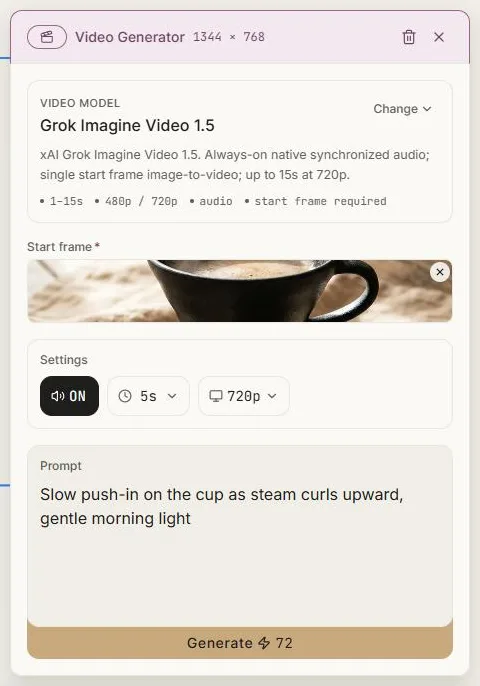
Start frame
Most video models animate a still image, so they need a first frame. You can:
- Upload one,
- Pick from canvas — Clip asks you to click an image, and the one you pick becomes frame one,
- Paste a URL.
Picking from the canvas is the natural workflow: generate a still you're happy with, then bring it to life.
Some models work from text alone. When one does, the start frame becomes optional and an aspect-ratio picker appears — with a start frame, the shape comes from the frame instead.
Settings
Duration — how many seconds. Some models take any whole number in their range; others offer fixed lengths. The control matches the model, and the price updates with it.
Resolution — 480p, 720p or 1080p depending on the model.
Audio — on by default where the model supports it. Generated video arrives with matching sound already in it.
Prompt
Describe the motion, not just the scene. The still already carries the subject; what the model needs from you is what should happen.
Slow push-in on the cup as steam curls upward, gentle morning light
Some models also take a negative prompt — what to keep out of the shot.
Reference media
Certain models accept reference images, reference video, or an audio track to drive the motion. When a model supports them the fields appear; when it doesn't, they're hidden.
Cost and time
Video is the most expensive thing Clip makes, and the price sits on the button before you commit — a five-second 720p clip starts around ⚡20 on the fastest model, runs about ⚡109 with audio included, and reaches ⚡164 on Clip's default. Model, duration, resolution and audio all move that number.
Some models offer a draft mode at roughly a quarter of the price for checking a direction before paying for the real thing.
Video takes minutes rather than seconds. The node shows progress and an elapsed timer throughout, and you can leave the page and come back.
On the canvas
The finished clip lands as a video object with a VIDEO badge, and a speaker icon when it carries audio.
Video does not autoplay — a canvas full of looping clips is unusable. Select a clip and choose Play controls to get a player with sound; Exit playback returns it to normal so you can move and resize it again.
From clip to cut
One generated clip is rarely the finished piece. When you need to trim, sequence, add titles or lay music underneath, open the video editor — it takes the clips from your project and gives you a proper timeline.
Next: Creating 3D models.