The video editor
Generated clips are raw material. The video editor is where they become a finished piece — trimmed, sequenced, titled, and scored.
It's a full editor with a timeline, a preview, an assets library and a properties panel, and it opens from your project without leaving Clip.
Available on the paid plans.
Opening it
Two routes:
- New video edit — in the generator menu on the tool rail. Starts an empty edit.
- Edit video — select a video clip on the canvas and choose it. Starts an edit seeded with that clip.
Either way you leave the canvas and enter the editor full-screen. Back to canvas returns you.
Your project can hold several video edits. They're listed in the Video edits tab, where you can rename, duplicate and delete them, and add a finished render back to the canvas.
The layout
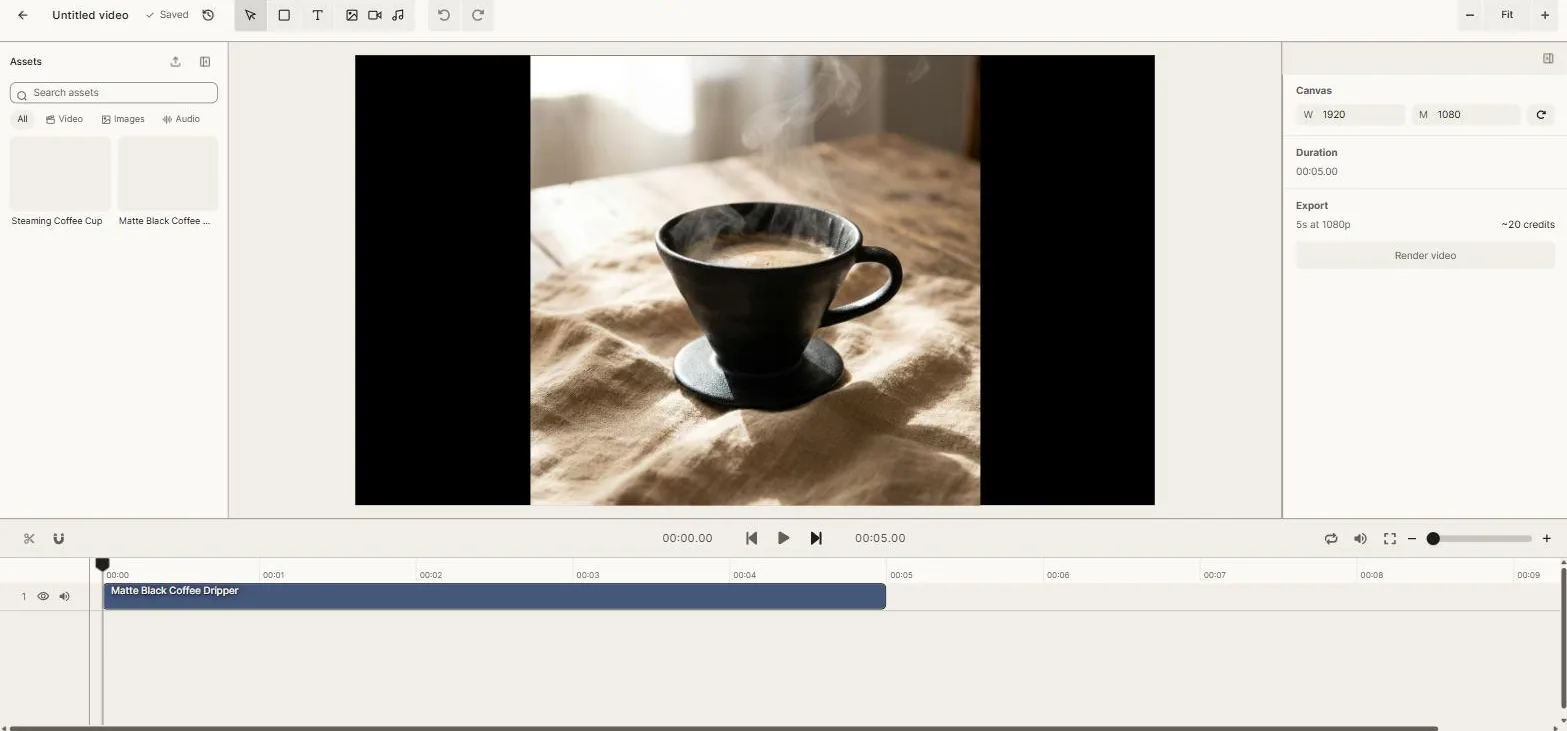
Four regions:
- Assets, on the left — everything in your project you can use.
- The preview, in the middle — your composition, playing.
- Properties, on the right — settings for whatever is selected.
- The timeline, along the bottom — clips arranged over time.
Both side panels collapse if you want more room for the timeline.
The assets panel
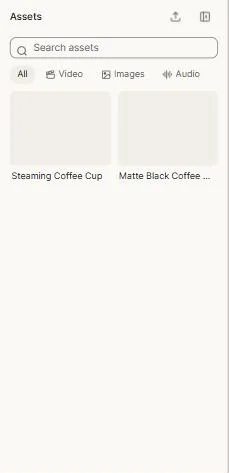
Every piece of media in the project: the video, images and audio you generated on the canvas, plus anything you upload here.
Filter by All, Video, Images or Audio, or search by name. Drag an asset onto the timeline, or select it and use Add to timeline.
Upload brings in files from your computer. The size limit depends on your plan.
Because the panel is fed by the project, work you generate on the canvas is immediately available here — generate a voiceover with the audio generator and it's in the list.
The preview
Standard transport controls: play and pause, jump to start, jump to end, and a scrubber. Plus:
- Loop — play the composition round and round while you adjust something.
- Mute — silence the preview without touching your audio levels.
- Fullscreen — watch it properly.
The time display shows your position and the total length.
What you can put on the timeline
- Video clips
- Images — held for a duration, so a still becomes a shot
- Audio — music, voiceover, effects
- Text — titles, captions you write yourself, lower thirds
- Solids — blocks of colour for backgrounds, cards and transitions
Saving
The editor saves continuously, with the status shown at the top: saved, saving, reconnecting, or a problem. There's no save button.
It also keeps its own version history, covering roughly the last four hours of active editing. Preview any earlier version and restore it if you want it — the same safety net the canvas has, in the editor.
If the same edit is open in another tab, Clip reconciles rather than letting the two overwrite each other.
View-only
You'll see a View only banner if you don't have permission to edit this video project, or if your plan no longer includes the video editor. Your videos remain safe either way — you can still watch and download them.
Next: Timeline & clips.