Canvas tools
The tool rail runs down the right edge of the canvas. Each tool has a single-key shortcut, shown in its tooltip.
The everyday tools
| Tool | Key | What it does |
|---|---|---|
| Toggle chat | C | Show or hide the AI chat panel |
| Select | V | Click, drag, resize, rotate |
| Mark | M | Drop numbered pins on an image |
| Upload | — | Bring in your own image or video |
| Frame | F | Draw a fixed-size container |
| Shapes | R | Rectangle, circle, triangle, diamond, star, hexagon, arrow, line |
| Pencil | P | Draw and highlight freehand |
| Text | T | Add and style text |
Below them sit the five generators, then undo and redo.
If your browser window is short, the rail collapses and everything below the fold moves into a ⋯ More tools menu. Nothing is lost — it's the same list.
Select
The default. Click to pick something up, drag to move it, use the handles to resize. Hold Shift while resizing to keep proportions.
Double-clicking an image does nothing on purpose — cropping is a deliberate mode, so a stray double-click can't accidentally reframe your work or drop a stray text box on top of it. See Free editing tools.
Mark
Marks are numbered pins you drop directly onto an image to point at a specific spot.
Their purpose is precision when talking to the AI. Instead of writing "change the thing on the left", you drop a pin on it and say "replace ①". The pins travel with your message, so both the chat agent and the Edit Now and Create Layers tools know exactly which part of the picture you mean.
Press M, click the places you care about, then write your instruction. Marks are free.
Upload
Brings your own images and video onto the canvas. You can also drag files straight from your desktop onto the canvas, paste them from the clipboard, or paste a web address. See Stock photos & uploads.
Frame
Frames are containers with a fixed size — an Instagram post, a story, an A4 page, or any custom dimensions. Anything you put inside is clipped to the frame and moves with it. Frames are how you build a deliverable rather than a mood board. See Frames & layout.
Shapes
Eight geometric shapes plus arrows and lines. Useful for backgrounds, callouts, dividers and diagrams. Shapes carry their own fill, and they respect the same align, distribute, group and arrange controls as everything else.
Pencil
Freehand drawing, with a highlighter option for annotating over the top of work. Sketches are ordinary canvas objects, which means you can hand one to the chat agent and ask it to turn your rough shape into a finished image.
Text
Click and type. Text has a full typographic toolbar — see Text & typography.
The five generators
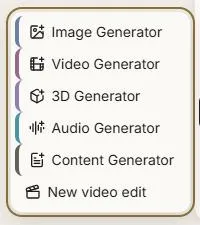
Each generator drops a node on the canvas and opens its form:
- Image Generator — pictures. Creating images
- Video Generator — moving footage with sound. Creating video
- 3D Generator — textured 3D models. Creating 3D models
- Audio Generator — speech and music. Creating audio
- Content Generator — written copy. The content writer
The same menu carries New video edit, which opens the video editor.
A node is a real object on the canvas. It survives a page reload with your settings intact, so you can set one up, leave, and come back to it.
Next: Text & typography.