Canvas basics
The canvas is where everything happens. It's infinite in every direction, and every kind of thing Clip makes lives on it together.
The layout
Four regions, and nothing else to learn:
- Top left — the project name and the main menu.
- Top right — brand kit, canvas background, zoom, and the panels: export, layers, assets, stock photos, version history.
- Right edge — the vertical tool rail.
- Right side — the AI chat panel, which you can hide.
The project pill
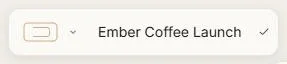
Click the name to rename the project in place. The tick beside it is the save indicator — it tells you when your work is safely stored. The chevron opens the menu for creating and switching projects.
The controls pill

Left to right: attach a brand kit, canvas background, zoom level, export the canvas, layers, assets, apps, stock photos, version history, your credit balance, and your account menu.
Moving around
| Action | How |
|---|---|
| Pan | Hold Space and drag, or drag with the Hand tool (H) |
| Zoom | Scroll, or Ctrl + / Ctrl − |
| Zoom to 100% | Shift 0 |
| Fit everything on screen | Shift 1 |
| Zoom to what's selected | Shift 2 |
The zoom readout in the top bar is also a menu, with Zoom to 100% and Zoom to Fit.
The minimap
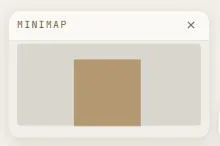
A small overview of everything you've made, bottom-left. On a big canvas it's the fastest way to see where you are. Close it with the × and reopen it from the bottom-right controls; Clip remembers your choice.
Selecting things
Click to select. Drag on empty canvas to marquee-select several things. Shift-click to add to a selection. Ctrl A selects everything.
Select one image and the AI toolbar appears above it. Select several and you get alignment and layout controls instead — see Frames & layout.
Undo, redo, and saving
Undo and redo sit at the bottom of the tool rail, and answer to Ctrl Z and Ctrl Shift Z.
Your canvas saves itself as you work. The indicator beside the project name shows the current state — saved, syncing, or a problem. You never press Save.
If a save ever fails, Clip tells you rather than failing quietly, and it will not overwrite good work with an empty canvas. Version history keeps earlier copies regardless.
The canvas background
Open the background picker from the top bar to change the canvas colour. It's a working surface, not part of your export — what you export is the content, not the backdrop.
Light and dark
Clip has a full dark theme, including the canvas. Switch it in Account & settings. This guide's screenshots are all in the light theme.
Next: Canvas tools — what each tool does.